
Choosing the Right Screen Size: TV, Monitor, and Projector Math
Work out the ideal screen size for your room, understand pixel density, and stop second-guessing your next display purchase.
Buying a screen is a lot like ordering pizza for a party. Too small and everyone squints. Too big and half of it goes to waste — except instead of cold pepperoni, you’re wasting money and wall space. The difference is that nobody has ever returned a pizza because the viewing angle was suboptimal.
Yet here we are, standing in electronics stores, trying to judge whether a 65-inch TV will look right in a living room we can barely remember the dimensions of. There’s actual math behind this decision, and it’s surprisingly straightforward once you stop trusting your gut and start trusting geometry.
The viewing distance problem
Every display has a sweet spot — a range of distances where it looks sharp, fills enough of your field of vision to be immersive, and doesn’t require you to move your head like you’re watching tennis. Sit too close to a massive TV and you’ll notice individual pixels like tiny angry squares. Sit too far from a small monitor and you might as well be reading a postage stamp.
The Society of Motion Picture and Television Engineers (SMPTE) recommends that your screen should occupy about 30 degrees of your field of view for a comfortable experience. For a more cinematic feel, THX suggests around 40 degrees. Neither organisation has issued guidance on how to explain to your partner why you need a bigger TV, but the math helps.
The formula is deceptively simple. Multiply your viewing distance by a factor that depends on the experience you want, and you get an ideal screen size. For the 30-degree SMPTE standard, the screen diagonal should be roughly 0.625 times your viewing distance. For the THX 40-degree recommendation, bump that up to about 0.835.
So if your couch sits 2.5 metres from the wall, the SMPTE guideline points to around a 62-inch screen, while THX would nudge you toward 82 inches. Your mileage — and your partner’s patience — may vary.
Rather than doing this arithmetic on a napkin, plug your room measurements into the calculator below.
Calculate the ideal screen size for your viewing distance
Display specs
Calculate display width, height, and area from diagonal size and aspect ratio
Enter a screen diagonal, width, or height with an aspect ratio to estimate the physical display dimensions of a TV, monitor, tablet, or phone.
Known measurement
Aspect ratio
Common diagonal presets
Planning note
Diagonal size alone does not tell you whether a display will physically fit. Use the width or height modes when a shelf opening, wall bay, or monitor-arm clearance is the known constraint.
Fit check opening
Compare the active display size against a shelf, wall bay, cabinet, monitor-arm span, or projector-screen frame before adding bezel and cable clearance.
Result
23.53 in × 13.24 in
A 27-in 16:9 display is about 23.53 in wide and 13.24 in tall.
- Width (in)
- 23.53
- Height (in)
- 13.24
- Width (cm)
- 59.77
- Height (cm)
- 33.62
| Known diagonal | 27 in / 68.58 cm |
| Diagonal | 27 in / 68.58 cm |
| Aspect ratio | 16:9 |
| Area | 311.5 in² / 2,009.68 cm² |
Fit check
The visible screen fits the checked opening
Fits the checked opening with 6.47 in width clearance and 4.76 in height clearance.
- Width clearance
- 6.47 in
- Height clearance
- 4.76 in
Common screen sizes at 16:9
Use this chart to compare the physical width, height, and area of popular monitor and TV diagonals using the same aspect ratio.
| Diagonal | Width | Height | Area | Area vs active | Typical use |
|---|---|---|---|---|---|
| 24" | 20.92 in | 11.77 in | 246.12 in² | -20.99% | Compact monitor |
| 27" | 23.53 in | 13.24 in | 311.5 in² | +0% | Common desk monitor |
| 32" | 27.89 in | 15.69 in | 437.55 in² | +40.47% | Large monitor or small TV |
| 43" | 37.48 in | 21.08 in | 790.08 in² | +153.64% | Small living-room TV |
| 55" | 47.94 in | 26.96 in | 1,292.58 in² | +314.95% | Popular TV size |
| 65" | 56.65 in | 31.87 in | 1,805.34 in² | +479.56% | Large TV comparison point |
Same diagonal, different ratios
These comparison rows keep the same diagonal but show how the physical footprint changes across common aspect ratios.
| Aspect ratio | Width | Height | Use case |
|---|---|---|---|
| 16:9 | 23.53 in | 13.24 in | Standard widescreen TV and monitor format. |
| 16:10 | 22.9 in | 14.31 in | Slightly taller productivity-oriented format. |
| 3:2 | 22.47 in | 14.98 in | Taller laptop and tablet format with more reading space. |
| 21:9 | 24.82 in | 10.64 in | Ultrawide format with more horizontal workspace. |
| 32:9 | 25.99 in | 7.31 in | Super-ultrawide format similar to two 16:9 panels side by side. |
| 4:3 | 21.6 in | 16.2 in | More square layout common on older displays and some tablets. |
Resolution matters more than you think
Here’s where things get interesting. A 65-inch 1080p TV and a 65-inch 4K TV are the same physical size, but they are not the same experience up close. The 4K panel packs four times as many pixels into the same area, which means you can sit closer before the image starts looking like a mosaic.
This is why pixel density — measured in pixels per inch, or PPI — is the metric that actually determines sharpness at a given distance. A 27-inch 4K monitor has a PPI of about 163. A 27-inch 1080p monitor? Around 82 PPI. The 4K version looks crisp at arm’s length; the 1080p version looks like it’s been through a mild earthquake.
For TVs, PPI matters less in absolute terms because you’re sitting further away. Your eyes can’t resolve individual pixels on a 55-inch 4K TV from 2 metres out, so the image looks perfectly smooth. But drop that same 4K resolution onto a 85-inch screen and sit the same distance away, and suddenly you might start noticing limitations.
The rule of thumb: higher PPI lets you sit closer. Lower PPI means you need more distance to smooth things out. This is why phone screens at 400+ PPI look razor-sharp held 30 centimetres from your face, while a 100-PPI TV looks fine from across the room but terrible as a desktop monitor.
Monitors vs TVs vs projectors
Desktop monitors live at arm’s length, so PPI is king. For productivity work — code, spreadsheets, the existential dread of unanswered emails — aim for at least 110 PPI. For photo or video editing, 140+ PPI will keep you from second-guessing whether that grain is artistic or just your display.
TVs are more forgiving. From 2 to 3 metres away, anything above 40 PPI will look smooth to most people. This is why 4K only becomes truly essential once you cross the 55-inch threshold at typical living room distances.
Projectors are the wild card. Their effective PPI depends on the projection size, and most projectors top out at 1080p or 4K. Throw a 1080p image onto a 120-inch screen and you’re looking at roughly 18 PPI. It’ll look fine for movie night with the lights off — motion and distance paper over the lack of detail — but you wouldn’t want to read spreadsheets on it. Not that anyone wants to read spreadsheets, period.
Putting the numbers together
The best approach is to work backwards from your constraints. Measure your viewing distance first, then use that to find the right screen size range. Once you know the size, check whether the resolution you’re considering delivers enough PPI at that distance.
Use the PPI calculator below to compare different screen size and resolution combinations. It’s particularly useful if you’re torn between, say, a 32-inch 4K monitor and a 27-inch 1440p — the PPI numbers will tell you which one wins on sharpness.
Calculate pixel density for any screen
Image size and resolution
Choose the image workflow first
Calculate image size, megapixels, aspect ratio, print dimensions, DPI/PPI density, and screen PPI without mixing assumptions. The panels preserve the old megapixel calculator, digital image resolution converter, resolution and print-size helper, aspect-ratio calculator, and PPI calculator workflows in one canonical page.
Active workflow
Megapixels
Calculate megapixels from width and height, or estimate dimensions from megapixels and aspect ratio.
Megapixels
12 MP
4,000 × 3,000 pixels at 4:3. Use this to calculate megapixels, compare image resolution in megapixels, or estimate dimensions from a target MP count.
Print sizes
72 DPI
55.56" × 41.67"
141.11 × 105.83 cm
150 DPI
26.67" × 20"
67.73 × 50.8 cm
300 DPI
13.33" × 10"
33.87 × 25.4 cm
Formula
Megapixels = (Width × Height) / 1,000,000
In reverse mode, the calculator uses megapixels and aspect ratio to estimate matching pixel dimensions, then turns those dimensions into print-size examples at common DPI levels.
Image workflow comparison
Megapixels
Answers: How many pixels an image contains, or what dimensions match a target MP count
Inputs: Width, height, megapixels, aspect ratio
Assumption: Megapixels measure total pixel count, not sharpness or print quality by themselves.
Print size
Answers: How large an image prints, or how many pixels a target print needs
Inputs: Pixels, inches, centimetres, millimetres, DPI/PPI
Assumption: The same image prints smaller at higher PPI and larger at lower PPI.
Density units
Answers: How DPI, PPI, DPCM, DPMM, LPI, px/mm, and pixel pitch compare
Inputs: One density value and unit
Assumption: Density labels do not set output size unless pixel dimensions or physical size are known.
Aspect ratio
Answers: What shape an image or screen has, and what missing side preserves that shape
Inputs: Width, height, or a ratio plus one known side
Assumption: Aspect ratio describes shape; it does not describe total detail.
Screen PPI
Answers: How dense a screen is at a given resolution and diagonal
Inputs: Resolution width, resolution height, screen diagonal
Assumption: Viewing distance and panel quality still affect perceived sharpness.
| Workflow | Answers | Inputs | Assumption |
|---|---|---|---|
| Megapixels | How many pixels an image contains, or what dimensions match a target MP count | Width, height, megapixels, aspect ratio | Megapixels measure total pixel count, not sharpness or print quality by themselves. |
| Print size | How large an image prints, or how many pixels a target print needs | Pixels, inches, centimetres, millimetres, DPI/PPI | The same image prints smaller at higher PPI and larger at lower PPI. |
| Density units | How DPI, PPI, DPCM, DPMM, LPI, px/mm, and pixel pitch compare | One density value and unit | Density labels do not set output size unless pixel dimensions or physical size are known. |
| Aspect ratio | What shape an image or screen has, and what missing side preserves that shape | Width, height, or a ratio plus one known side | Aspect ratio describes shape; it does not describe total detail. |
| Screen PPI | How dense a screen is at a given resolution and diagonal | Resolution width, resolution height, screen diagonal | Viewing distance and panel quality still affect perceived sharpness. |
What moved into this image calculator
The former specialist pages still matter as search intents: megapixel calculator, digital image resolution converter, resolution and print size calculator, aspect ratio calculator, and PPI calculator. They now resolve into one image size and resolution calculator with separate panels for pixel count, print planning, density conversion, frame shape, and display sharpness.
Image format conversion and color conversion stay separate because file encoding, compression, colour spaces, and palette conversion are materially different jobs from sizing, density, and print-readiness math.
The practical checklist
Before you hand over your credit card, run through this:
- Measure your actual viewing distance. Not the distance you wish you had. The real one, from where you actually sit to where the screen will live.
- Check the screen size range using the viewing distance formula or the calculator above. If the recommended size doesn’t fit your wall or desk, adjust your seating — not the math.
- Verify the PPI for your chosen size and resolution. If it falls below 80 for a monitor or below 30 for a TV at your distance, consider bumping up the resolution.
- Account for the panel type. OLED, IPS, and VA panels all have different strengths at various angles. This article is about size and density, but viewing angles matter if your couch isn’t dead-centre.
- Ignore the store demo. Showroom lighting, viewing distances, and content are all optimised to make you buy the biggest thing on the wall. Your living room is not a Best Buy.
Screens are one of those purchases where a little arithmetic up front saves you from a lot of buyer’s remorse later. The formulas aren’t complicated. The calculators do the heavy lifting. All you need to bring is a tape measure and the willingness to trust numbers over impulse.
Your future self, comfortably watching from exactly the right distance, will thank you.
Calculators used in this article
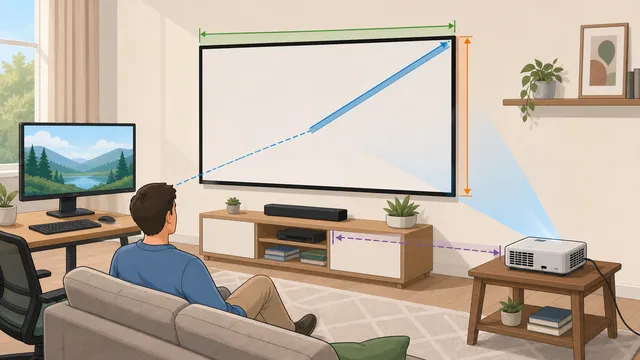
Technology / Data
Display Calculator
Calculate display dimensions, pixel density, TV viewing distance, and projector throw setup in one screen, monitor, TV, and PPI planning tool.
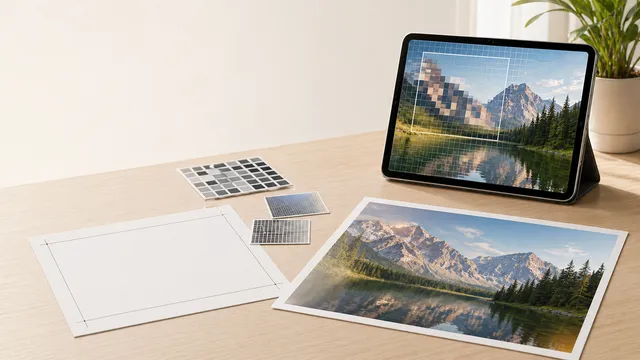
Converters / Digital / Media & Images
Image Size & Resolution Calculator
Calculate image size, megapixels, aspect ratio, print dimensions, required pixels, DPI/PPI density, and screen PPI in one resolution planning tool.